Connect Flow to Microsoft Teams for channel help and private conversations.
Connect your Microsoft 365 tenant, install Flow, and link a help desk channel.
Use a standard channel for conversations that continue without repeated mentions.
By default, employees can start personal conversations after adding Flow to Teams in a connected tenant.This guide and the bundled app package apply to production Flow at
https://app.letsflow.ai.
See Using Flow in Microsoft Teams for requests, files, and approvals after setup.
Use the same four-step guide in Settings → Chat, 1st day setup, or
Integrations → Add connection → Microsoft Teams. A Flow organization administrator manages
setup in Flow. A Microsoft Global Administrator approves the tenant and app permissions.
A Team owner adds Flow to the Microsoft Team.
Flow uses one primary chat provider per organization. If Slack is connected, disconnect it in
Settings → Chat before starting. Disconnecting stops Slack replies and removes team-channel
links. Link your Flow teams to Teams channels after switching.
1
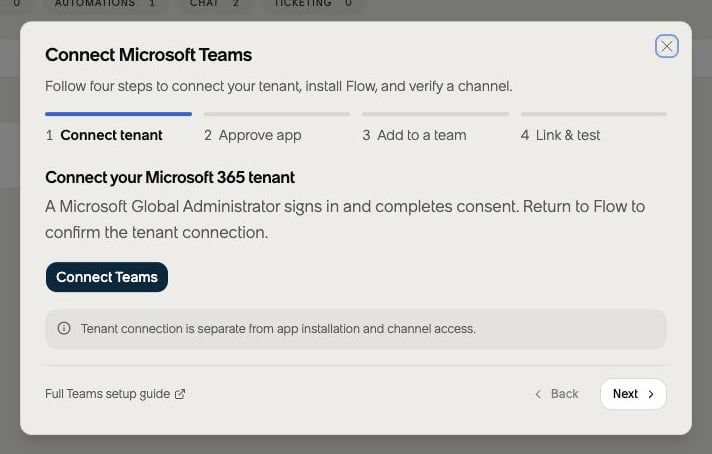
Connect your Microsoft 365 tenant
In Flow, select Connect Teams. Sign in with a Microsoft Global Administrator account
and complete consent. Return to Flow and confirm Connected in Chat settings or
Tenant connected in Integrations.An existing verified tenant starts at Approve app. A connection that needs attention
starts at Connect tenant with Reconnect Teams. Tenant connection does not install
the app or verify channel messaging.
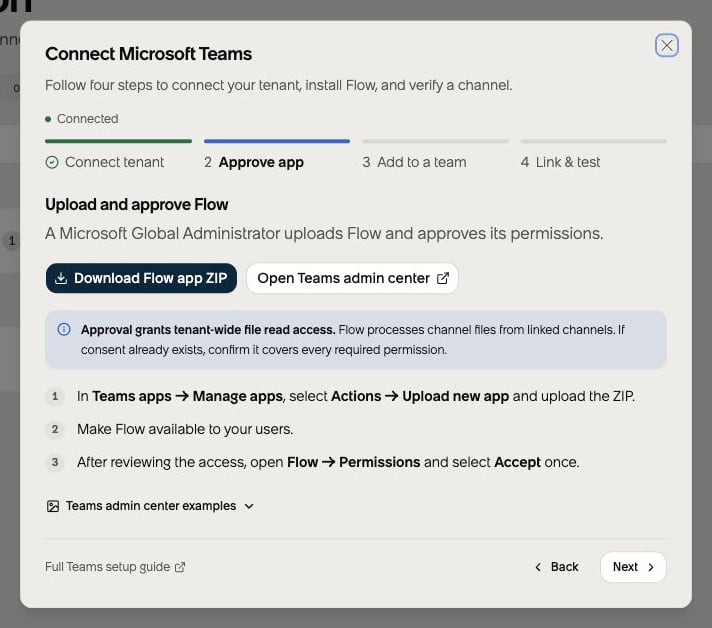
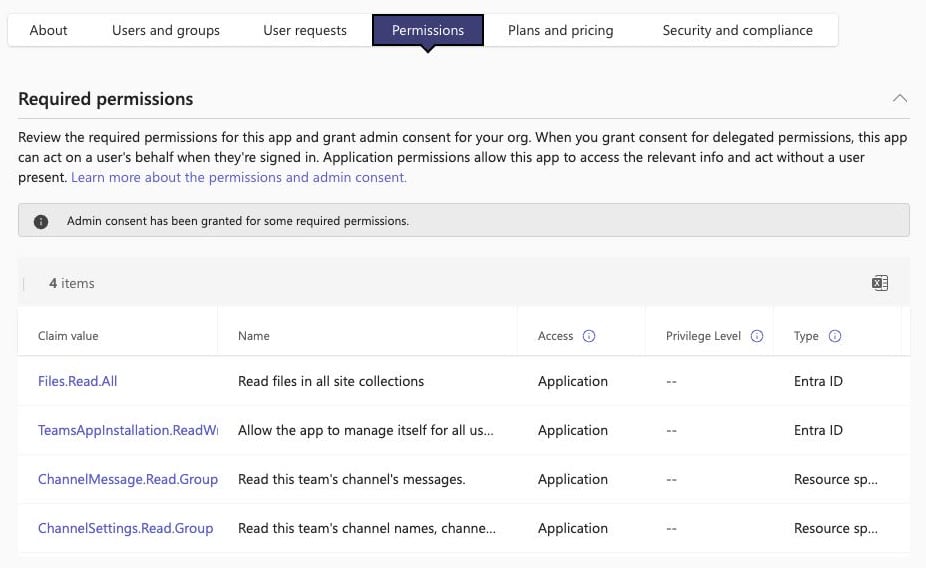
Approval grants tenant-wide file read access through Files.Read.All. Flow processes
channel files from linked channels. Review this access before you accept.
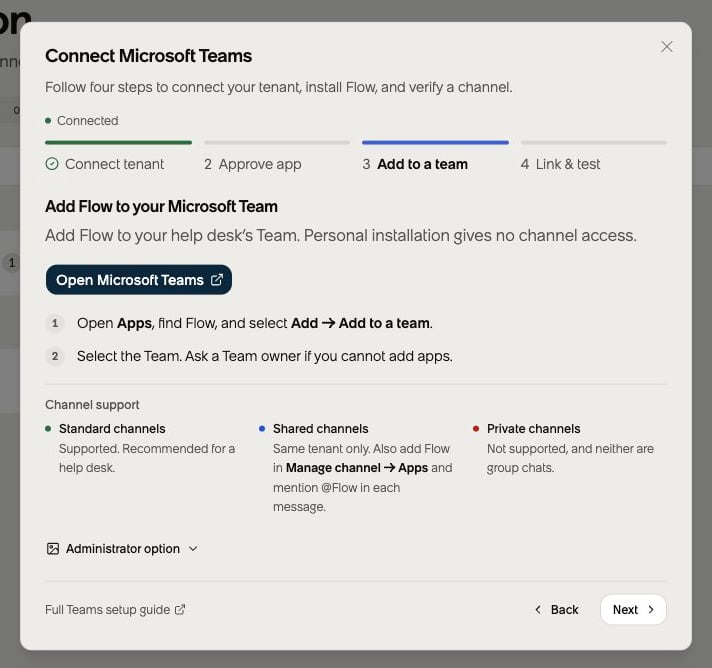
In Microsoft Teams, open Apps, find Flow, and select Add → Add to a team.
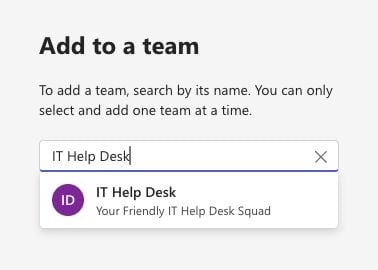
Choose the Team that contains your help desk channel. Ask a Team owner if you cannot
add apps.
Installing Flow personally does not grant channel access.
Channel type
Flow support
Standard
Supported. Recommended for a help desk.
Shared, same tenant
Also add Flow under Manage channel → Apps in its host Team. Mention @Flow in each message.
Private channels and group chats
Unsupported.
In Flow
Administrator option
Add Flow to the Team that contains your channel.
An administrator can also open Teams apps → Manage apps in Teams admin center,
select Flow, and choose Add to team. Search for the Team, select it, and choose Apply.
Search for the Team that contains your help desk channel.
4
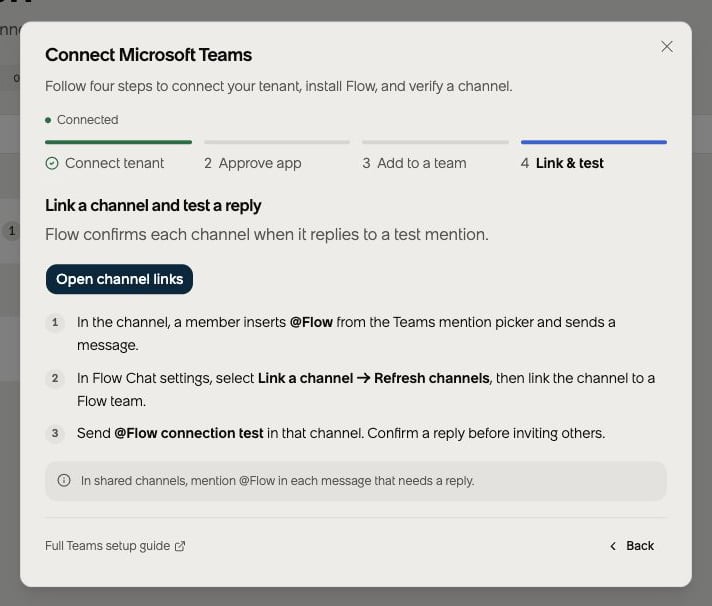
Link a channel and test a reply
Ask a channel member who can use Flow to insert @Flow with the Teams mention picker
and send a harmless message.
In Flow Chat settings or the Microsoft Teams integration page, select
Link a channel → Refresh channels. Choose the channel and a Flow team, then save.
Send @Flow connection test in the linked channel. Confirm a reply before inviting others.
If Flow shows Awaiting test mention, send the test within 15 minutes.
For shared channels, mention @Flow in each message that needs a reply.
Step 4: discover, link, and test your channel.
The guide lets you review any step. Selecting Next does not mark installation or channel
verification complete. Flow confirms the tenant from its connection state and each channel
from its test mention.
This short video shows the four guide screens in Flow.
Flow reserves each Microsoft tenant for one Flow organization, and each organization for one tenant,
until you disconnect it. A connection that needs attention still reserves that ownership.
Review tenant transfer and disconnection
before moving an existing connection.Setup started from Integrations returns to the Microsoft Teams integration page.
You can also open that page from Integrations → Manage Microsoft Teams to review
tenant verification, personal conversations, and channel links.
Tenant connected confirms tenant verification; test each channel before use.
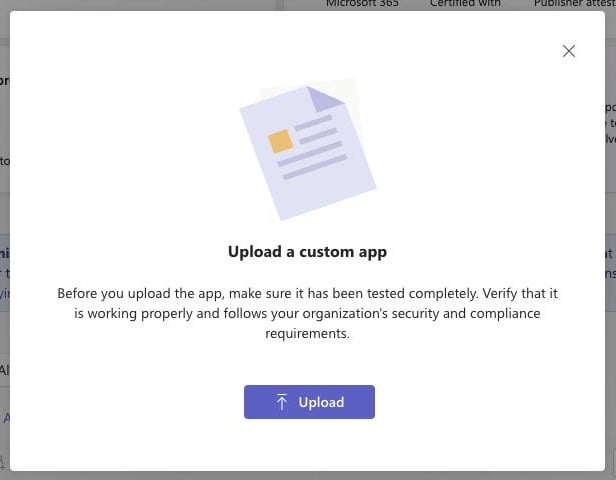
If your catalog already has this Flow app, use Upload file on its details page to update it.
The current app ID is 687d4e95-aacc-4482-85fe-849e7de291ff.
A Flow listing with another app ID is a separate app. Install the current app and test its
channel links before removing the earlier listing or its Team installations.
Check app access and Team consent
Confirm that employees can use Flow under your tenant’s
app availability controls.
Check the separate resource-specific consent policy
before Team installation. App availability and tenant-wide permission approval do not bypass
that policy. Adding Flow to another supported Team does not require separate SharePoint grants.
Allow time for Microsoft propagation
An uploaded custom app can take a few hours to appear. App-centric availability changes can
take up to 24 hours, and rarely up to six days. These are Microsoft’s guidance windows,
not Flow timing guarantees. See custom app management
and app-centric management.
Flow’s Teams integration uses Microsoft’s worldwide sign-in and Graph services.
This boundary applies to tenant connection, channel messaging, file access, and personal conversations:
Microsoft 365 environment
Flow support
Public cloud
Supported.
Government Community Cloud (GCC)
Not verified for Flow. Microsoft uses worldwide Graph endpoints for GCC, but that alone does not establish that the complete integration works. Contact Flow support before planning setup.
GCC High, Department of Defense (DoD), and China operated by 21Vianet
Unsupported. Flow does not provide the separate cloud configuration these environments require.
Microsoft documents these differences in national cloud deployments.
Uploading the app or granting consent does not change this support boundary.
Team privacy and channel type are separate settings. A private Microsoft Team can contain standard
channels. A Private label on a Team does not establish an individual channel’s type. Check the
channel itself. See Microsoft’s teams and channels overview.
Standard: available to everyone in the Microsoft Team. Recommended for a Flow help desk.
Private: available only to selected members of that Team. Flow does not support replies,
progress cards, or approval cards here. Mentioning @Flow does not enable replies.
Shared: has its own membership and can include people from other Teams or organizations.
Flow currently supports only participants in the connected Microsoft tenant.
Channel type controls the audience. Posts and Threads only control the conversation layout;
a standard channel can use either. Moving a help desk to a standard channel can expose its messages
and files to more Team members. Review the audience before moving a real conversation.For shared channels, mention @Flow in each message that needs a reply, including
follow-ups. Keep Channel messages and context enabled so Flow can read earlier messages when
that mention arrives. Selecting Mentions only stops Flow from fetching earlier thread context. Both modes support
attachments on messages Flow processes. Neither mode changes which events Microsoft delivers.
agents can’t post messages or Adaptive Cards in private channel conversations.
Adding the app and sending an @mention do not remove that posting restriction. Private-channel
conversations remain unsupported by Flow, even if the app is visible there. This restriction does
not apply to standard channels inside a private Team.
An employee who adds Flow personally can start a conversation after the tenant is connected.
Starting a conversation before the employee messages Flow also requires administrator consent.
Flow supports this first-contact installation in Microsoft 365 public cloud tenants. See the
cloud support boundary before planning setup in a government or national cloud.
Before testing, confirm that your Teams app policies allow Flow’s personal installation and messaging.
1
Install the current Flow app in a team.
A Microsoft Teams administrator allows the current Flow app package. A Team owner adds Flow to
at least one Microsoft Team. Flow reads its own verified Team installation to discover the
tenant’s app catalog identity. Existing Team installations need the updated app package and
consent for its TeamsAppInstallation.Read.Group permission.
2
Approve first-contact installation.
For Flow to start a conversation before an employee messages it, a Microsoft 365 administrator
grants the Flow bot application TeamsAppInstallation.ReadWriteSelfForUser.All. This separate
consent lets Flow install only its own app for an eligible employee. Installing the Teams app
package does not grant this permission.
3
Verify employee-started conversations.
Ask an eligible employee who has added Flow personally to send a message. Confirm that Flow
replies in the personal conversation.
4
Verify Flow-started first contact.
A team Agent or higher opens an open conversation whose requester is an employee who has
not messaged Flow. In Requester chat, choose Microsoft Teams DM under
Communication Channel, write a reply, and select Send. Flow checks its own app
installation and the recipient before it sends. The employee receives the reply as the first
message in a personal Teams conversation.
If Microsoft Teams DM is not in Communication Channel, Flow cannot start a personal
conversation with that requester. Check that personal conversations are on in Settings → Chat
and that the requester has a verified employee identity in the connected tenant. Do not send a test reply
to a requester who has not expected a message.Personal conversations are on by default. In Settings → Chat, an organization administrator
can turn them off or restore them. Flow offers all active service teams to employees who pass the
current identity and request-access checks. You do not need to enter a catalog ID or select
service teams for personal access. Adding Flow in Teams does not give an employee access to a
request or service team in Flow.See Personal conversations for
request selection and private follow-up.
You do not need to copy Microsoft Team or channel IDs.Flow labels shared and private channels beside their names and explains their restrictions in the
channel-link dialog. Standard channels need no type label. Shared-channel first-mention
acknowledgements also explain that each follow-up needs @Flow. If Microsoft
does not return the type during discovery, the acknowledgement says it could not verify the type.
The picker can retain a previously observed type. Binding independently verifies the type with
Microsoft; the connected-channel list uses that verified value.
Help and Hi prioritize a quick command response and include the discovery warning only when
the lookup finishes in time. Check the channel-link dialog before saving the link.If the picker labels a channel Private, do not use it for Flow conversations. Choose a
supported channel with the intended audience. Discovery and saving a link do not establish reply
support.Use Link a channel in Settings → Chat or Integrations → Microsoft Teams.
Select Refresh channels after the first mention, choose the Microsoft Team and channel,
then select a conversation mode and save the link.If Flow shows Awaiting test mention, send @Flow connection test within 15 minutes.
Confirm that Flow replies before sending your service request. Help and Hi receive their
normal command response instead of a separate readiness reply.A successful test mention proves that Flow receives mentions in that channel. It does not prove
unmentioned delivery. Before inviting users to a standard channel with Channel messages and
context, ask Flow a question, then send a relevant follow-up without a mention and confirm that
Flow answers in the same thread. In shared channels or with Mentions only, include @Flow
in both messages.Flow records only the tenant, Team, channel coordinates, bounded display names, channel type, and
observation time during discovery. It does not retain the discovery message or sender identity.Each Microsoft Teams channel can link to only one Flow team. A Flow team can have one active
Microsoft Teams help desk channel.
These modes apply to supported standard and same-tenant shared channels. Neither mode enables
private-channel replies.
Mode
Behavior
Channel messages and context (recommended)
Flow can read earlier messages in the current thread. For messages delivered by Teams, Flow decides whether to reply, react, or ignore.
Mentions only
Flow responds only to messages that mention @Flow. It can read attachments on those messages. It cannot fetch earlier thread messages or post approval cards. Include the relevant details in your mention.
Attachment access is required in both modes. Flow checks it when you save the channel link.
If Microsoft reports missing consent or denies file access, Flow shows Attachment access needs attention.
You can continue setup. An incomplete check or a temporary service failure does not show this warning.
Text conversations remain available after delivery verification. Resolve the file issue, then select
Check again. This check does not disconnect the channel or repeat delivery verification.Read access does not guarantee that Teams delivers every unmentioned message to Flow. Use a
standard channel for unmentioned follow-ups. If a
follow-up gets no response, mention @Flow in the same thread. With recommended access, Flow reads
the earlier thread messages before answering, including messages that did not notify the bot.Resource-specific consent applies only to the Microsoft Team where Flow is installed. Flow does
not request tenant-wide Team.ReadBasic.All, Channel.ReadBasic.All, or AppCatalog.Read.All for
channel discovery. The authenticated mention supplies the Team and channel coordinates, and Flow
performs an exact Graph preflight before it activates the link.