

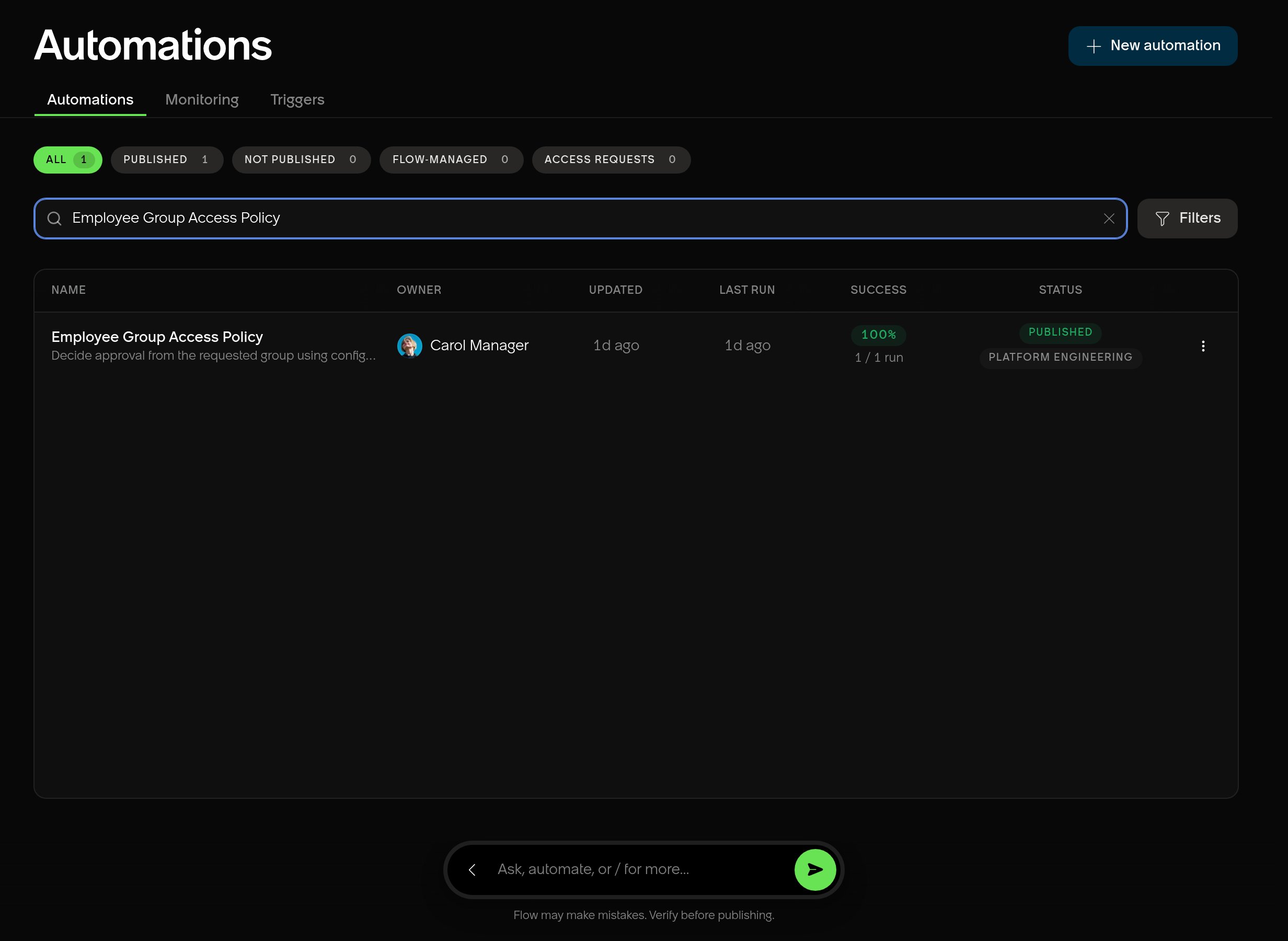
Use search and filters to find an automation.
Review revisions
1
Open the automation.
2
Use Select viewed revision beside its name.
3
Select Run history, then filter the activity list to Versions to see saved changes.
4
View or compare the revision.
Use Open to view it, or Compare to open the Compare versions tab.
Compare versions
Select a version on each side to review changes from left to right. The comparison opens in the visual view. Added, Changed, and Removed chips appear inside affected cards and beside affected connections. Select the Code icon to inspect the source diff; select it again to return to the visual view. Both views use the same version selections. Visual comparison summarizes changes to triggers, steps, outputs, and connections. Formatting and canvas position do not add change chips. Use Code for exact source differences; visual comparison does not prove that two versions execute identically. Flow follows module-level trigger specification arrays, including aliases and spreads. Changes to a referenced specification mark its matching trigger, not unrelated trigger kinds. Reordering equivalent trigger specifications does not mark a trigger as changed. Changes to a module-level object’s property mark steps that read that property, not steps that read an unrelated property. Dynamic property access and whole-object reads can still show a change. If either version cannot render as a graph, the visual comparison shows an error instead of change chips. Select Code to inspect both sources. Choose valid versions to return to visual comparison. If Flow cannot load versions or their source, the comparison shows an error. Select Try again to retry the failed load, or choose another available version. Saved versions appear once in each menu. Current draft appears only when the automation has a draft, including unsaved edits. Select it on either side to compare the draft with a saved version. Its source and availability follow the editor as you make or undo changes. If no draft remains, the option disappears without closing the comparison. After you save, the new version appears in both menus without reopening the comparison. Saving converts Current draft to the newly saved version on either side. Saved selections remain selected when you make further edits. Saving also keeps the original automation editor open without resetting its position. The comparison is read-only. Return to the original automation tab to continue editing without losing unsaved changes. Opening another comparison reuses the Compare versions tab. Close that tab when you finish reviewing.Edit after viewing an older version
Older versions are read-only. Selecting one switches Flow to Ask. You can ask questions about that version without changing it. Opening a comparison or run tab keeps the viewed revision on the original automation tab. Returning to that tab or using browser Back and Forward preserves its source and read-only state. Viewing another automation does not apply the earlier automation’s revision to it. If you ask Flow to apply a change, it shows a Switch to Build mode? card. Select Switch to Build to return to the current automation and continue the request in Build. Flow edits the current draft, not the older version. Flow must save unsaved draft changes before continuing. If saving fails, you return to Ask in the older version. The approval stays pending. Resolve the save problem and retry, or select Stay in this version. Select Stay in this version to keep viewing the older version. Flow does not apply the requested change. This mode approval does not publish or run the automation. In Build, Flow does not request mode approval for each edit. Returning to Ask does not require approval. The same approval applies when you request an edit in Ask on the current automation. Flow can offer this approval only inside an existing automation, including its run and version views. It does not offer mode approval on automation lists, Monitoring, Triggers, or unrelated pages.Publish an older revision
1
Open the earlier revision.
2
Select Publish.
3
Confirm Version to publish.
4
Recheck its audience, connections, approvals, and execution identity.
5
Publish it.
Transfer ownership
Ownership controls who can author the automation. Publication controls who can use it. For a published access automation, unpublish before changing teams. Its access setup belongs to one team. After transferring, select the new team’s access setup before publishing again.1
Select Settings.
2
Under Owning team, choose the new team.
3
Select Save.