> ## Documentation Index
> Fetch the complete documentation index at: https://docs.letsflow.ai/llms.txt
> Use this file to discover all available pages before exploring further.
# Request tracking
> Follow a request from its first message through resolution.
A request starts as a conversation. It can continue in Flow, Slack, or email while operators work
from one record in **Conversations**.
The conversation header shows its requester, priority, status, and reference number.
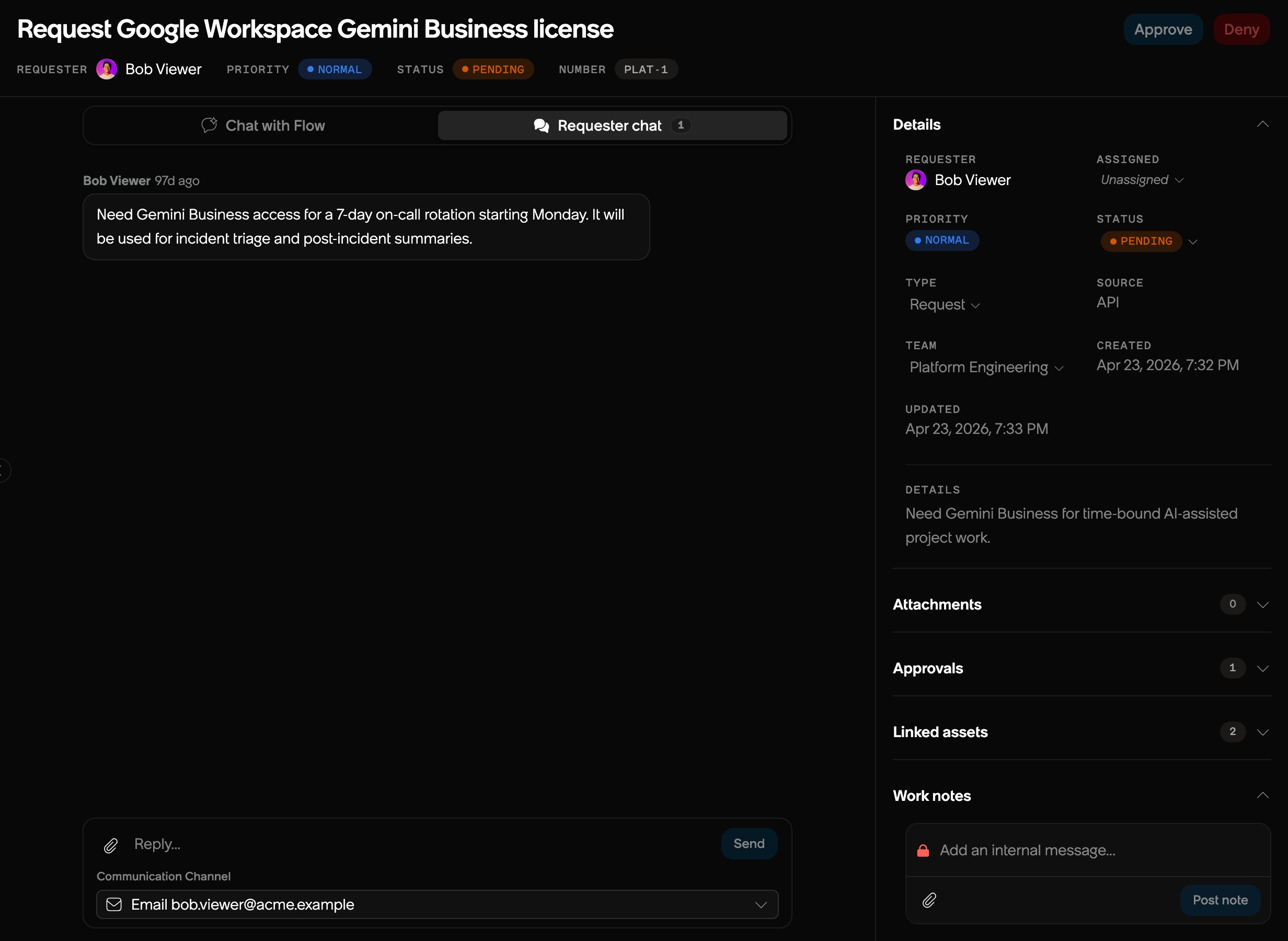 Requesters and operators track the same request from different views of the conversation.
## Tracking a request as a requester
Continue in the same place where the request started:
* Reply in the existing Slack or email thread.
* In Flow, return to **Home** and continue the open conversation.
Add new information to the existing thread instead of opening a duplicate request.
## Existing software access
Flow checks for an existing license or unfinished access request before creating another allocation
request. If a request is already in progress, check that request for updates. If access is being
removed, contact the service team.
If your existing access does not work, ask Flow to open a support ticket. Describe the problem,
its impact, and any fixes you tried. The service team receives an incident to investigate instead
of another license request.
## Adding files to a request
Files uploaded from the **Attachments** panel are added directly to the open request after Flow
checks them. Files shared in a conversation with Flow are conversation context first, whether the
conversation is in Flow or Slack. Sharing a file does not attach it to a request by itself.
To add a conversational file to a request, explicitly ask Flow to add it. Name the file and include
the request reference number when more than one file or request could match. Flow confirms the
action only after checking the file, your access, and the target request. When you ask from the
assistant inside an open request, the request details refresh after the attachment is added.
### Browser chat file support
When chatting with Flow from an open request, you can select up to 10 files for one message. Each
file can be up to 25 MB. Flow accepts the following formats:
* Documents and data: CSV, DOCX, JSON, Markdown, PDF, PPTX, TXT, and XLSX
* Images: GIF, JPEG, JPG, PNG, and WebP
* Audio and video: M4A, MOV, MP3, MP4, OGG, WAV, WebM
Flow can accept a file that is too large for the assistant to read. For workbook questions, use
an unprotected `.xlsx` file up to 10 MB. Flow reads visible and hidden worksheets, including
their names, cell positions, literal values, and saved formula results. It does not recalculate
formulas, fetch external references, or read charts and embedded media. Recognized calendar dates
appear as dates. When a date or time format varies by locale, Flow shows the stored serial and
labels a possible date. Other numbers use their stored values, so display formats such as
percentages, currency, times, and durations may differ from the spreadsheet app. If a formula
has no saved result, recalculate and save the workbook, or export the relevant worksheet as CSV.
Dense workbooks may show only part of each worksheet. Flow labels omitted cells. Upload a
smaller workbook or CSV when you need every row. Flow cannot read
encrypted or macro-enabled workbooks, or legacy `.xls` and `.xlsb` files.
Flow checks each selected file separately before sending the message. A **Ready to send** file stays
ready if another file needs attention. **Upload interrupted** means that you can select **Send**
again without re-uploading files that are already ready. If Flow cannot use a file, its status spells
out the reason, such as **Larger than 25 MB** or **File type not supported**. Remove that file before
continuing. Your draft and the other selected files stay in the composer while you recover.
Slack and email apply their own attachment count and size limits. The same supported file formats
and file checks still apply.
For PowerPoint files, Flow reads slide text, tables, links, and authored image titles and
descriptions from presentations up to 10 MB. Flow does not interpret slide images. Speaker notes,
SmartArt, charts, and embedded objects are not included. If the deck has no extractable text or
links, upload a text version or share the relevant slides as images. Use an unprotected `.pptx`
file, not a macro-enabled presentation.
## Track a request as an operator
From the Conversations page, select the conversation.
Read **Requester chat** and any **Work notes**.
Choose an available route under **Communication Channel**, then reply.
Update assignment or status when needed.
The side rail can show related approvals, automation runs, records, knowledge, assets, and recent
activity. These sections appear only when the conversation has related data.
Viewers can read conversations but cannot reply.
## Related topics
* [Conversations](/setup/conversations)
* [Channels](/setup/channels/overview)
* [Approvals](/setup/approvals)
This documentation is built and hosted on [Mintlify](https://mintlify.com), a developer documentation platform.
Requesters and operators track the same request from different views of the conversation.
## Tracking a request as a requester
Continue in the same place where the request started:
* Reply in the existing Slack or email thread.
* In Flow, return to **Home** and continue the open conversation.
Add new information to the existing thread instead of opening a duplicate request.
## Existing software access
Flow checks for an existing license or unfinished access request before creating another allocation
request. If a request is already in progress, check that request for updates. If access is being
removed, contact the service team.
If your existing access does not work, ask Flow to open a support ticket. Describe the problem,
its impact, and any fixes you tried. The service team receives an incident to investigate instead
of another license request.
## Adding files to a request
Files uploaded from the **Attachments** panel are added directly to the open request after Flow
checks them. Files shared in a conversation with Flow are conversation context first, whether the
conversation is in Flow or Slack. Sharing a file does not attach it to a request by itself.
To add a conversational file to a request, explicitly ask Flow to add it. Name the file and include
the request reference number when more than one file or request could match. Flow confirms the
action only after checking the file, your access, and the target request. When you ask from the
assistant inside an open request, the request details refresh after the attachment is added.
### Browser chat file support
When chatting with Flow from an open request, you can select up to 10 files for one message. Each
file can be up to 25 MB. Flow accepts the following formats:
* Documents and data: CSV, DOCX, JSON, Markdown, PDF, PPTX, TXT, and XLSX
* Images: GIF, JPEG, JPG, PNG, and WebP
* Audio and video: M4A, MOV, MP3, MP4, OGG, WAV, WebM
Flow can accept a file that is too large for the assistant to read. For workbook questions, use
an unprotected `.xlsx` file up to 10 MB. Flow reads visible and hidden worksheets, including
their names, cell positions, literal values, and saved formula results. It does not recalculate
formulas, fetch external references, or read charts and embedded media. Recognized calendar dates
appear as dates. When a date or time format varies by locale, Flow shows the stored serial and
labels a possible date. Other numbers use their stored values, so display formats such as
percentages, currency, times, and durations may differ from the spreadsheet app. If a formula
has no saved result, recalculate and save the workbook, or export the relevant worksheet as CSV.
Dense workbooks may show only part of each worksheet. Flow labels omitted cells. Upload a
smaller workbook or CSV when you need every row. Flow cannot read
encrypted or macro-enabled workbooks, or legacy `.xls` and `.xlsb` files.
Flow checks each selected file separately before sending the message. A **Ready to send** file stays
ready if another file needs attention. **Upload interrupted** means that you can select **Send**
again without re-uploading files that are already ready. If Flow cannot use a file, its status spells
out the reason, such as **Larger than 25 MB** or **File type not supported**. Remove that file before
continuing. Your draft and the other selected files stay in the composer while you recover.
Slack and email apply their own attachment count and size limits. The same supported file formats
and file checks still apply.
For PowerPoint files, Flow reads slide text, tables, links, and authored image titles and
descriptions from presentations up to 10 MB. Flow does not interpret slide images. Speaker notes,
SmartArt, charts, and embedded objects are not included. If the deck has no extractable text or
links, upload a text version or share the relevant slides as images. Use an unprotected `.pptx`
file, not a macro-enabled presentation.
## Track a request as an operator
From the Conversations page, select the conversation.
Read **Requester chat** and any **Work notes**.
Choose an available route under **Communication Channel**, then reply.
Update assignment or status when needed.
The side rail can show related approvals, automation runs, records, knowledge, assets, and recent
activity. These sections appear only when the conversation has related data.
Viewers can read conversations but cannot reply.
## Related topics
* [Conversations](/setup/conversations)
* [Channels](/setup/channels/overview)
* [Approvals](/setup/approvals)
This documentation is built and hosted on [Mintlify](https://mintlify.com), a developer documentation platform.