> ## Documentation Index
> Fetch the complete documentation index at: https://docs.letsflow.ai/llms.txt
> Use this file to discover all available pages before exploring further.
# Permissions
> Understand organization roles, team roles, and least-privilege access.
Flow combines organization membership, organization role, team membership, team role, enabled
features, and resource-specific rules.
Turning on a feature does not grant every team member write access.
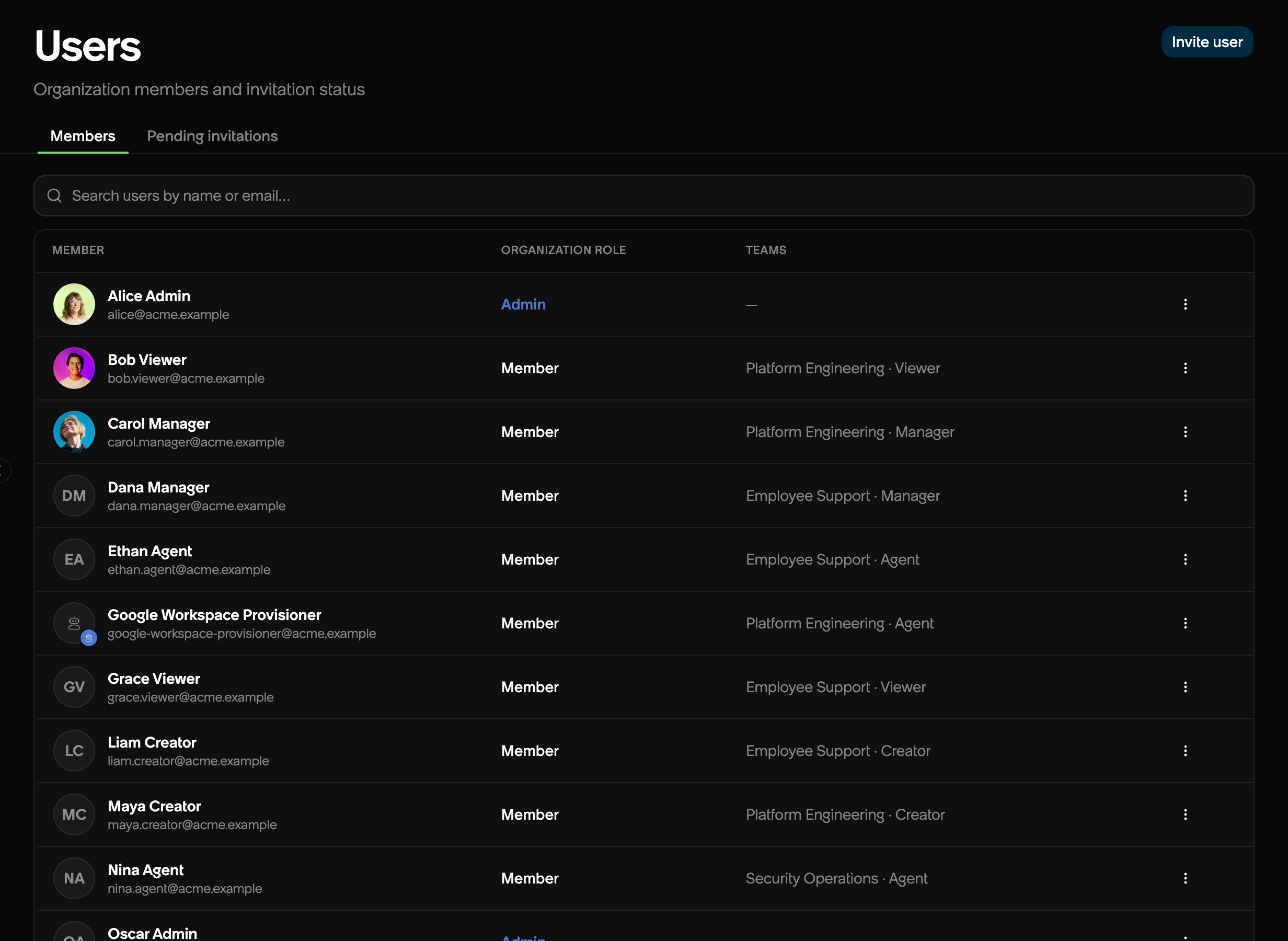 ## Organization roles
| Role | Purpose |
| - | - |
| **Member** | Standard organization membership. Team roles provide operating access. |
| **Admin** | Manages organization settings and has full permissions across teams. |
| **Owner** | Has organization administrator authority and organization ownership. |
Use **Settings → Users** to assign **Member** or **Admin**.
## Team roles
Team roles are cumulative:
`Viewer → Agent → Creator → Manager`
| Role | Typical access |
| - | - |
| **Viewer** | Read accessible team records |
| **Agent** | Work conversations and operational records, and view automation runs |
| **Creator** | Build and directly start automations, and manage team guidance |
| **Manager** | Manage the team, members, features, sources, and destructive actions |
Organization administrators receive full team permissions, with one exception. Only a team
**Manager** can change **Exclude organization admins from conversations** under **Details →
Conversation access**. An organization administrator who is not a Manager of the team cannot
change it.
Viewing automation runs, inputs, outputs, and logs requires **Agent** or higher in the owning
team. Flow applies this rule in chat as well. If you hold **Agent** in one team and **Viewer**
in another, run lists include only the team where you have run access.
You can still check the status of a request you submitted or received. Request status does
not include operator inputs, raw outputs, logs, or diagnostics. Results shared through a
catalog request follow that item's access rules.
## Creating conversations
Creating a conversation uses a separate intake rule from replying, assigning, or resolving it.
With Viewer or higher access to any active team with Conversations or Assets enabled, you can
choose another active workspace member as the requester. Organization Admins and Owners also
qualify. You can send the conversation to any team with Conversations enabled, including a team
you do not belong to.
Flow records the person who submits the conversation separately from the requester who needs
help. Submission does not grant destination queue access, private conversation history, or
permission to act in connected applications as the requester.
Members without qualifying team access can submit for themselves. API keys also remain limited
to their authenticated identity. Retrying a delegated create submission requires current
delegation access. An identical retry with the same idempotency key does not create a second conversation.
See [Create a conversation for someone else](/setup/conversations#create-a-conversation-for-someone-else).
## Creating automations
In **Automations**, **New automation** is available when you have **Creator** or **Manager**
access in a team with Automations enabled. Organization administrators can also create
automations.
The team you select for browsing does not change your roles in other teams. For example, a
Member who is a Creator in Team A and an Agent in Team B can select Team B and still create
an automation owned by Team A. This does not grant creation permission in Team B.
## Starting automations
Direct automation starts require Creator or Manager team permissions. Organization administrators also have these permissions.
The same authority applies in **Chat with Flow**, ticket conversations, the API, and hosted MCP.
Viewer and Agent team roles alone do not allow direct starts.
An enabled feature or an automation's published audience does not grant start authority.
The automation must allow the selected execution team and entry point.
Catalog requests have separate access and approval rules. Viewers and Agents can request eligible catalog items through **Chat with Flow**.
Requesting a catalog item does not grant permission to start other automations directly.
## Assign a team role
Open **Settings → Flow Teams**.
Expand the team and open **Members**.
Choose **Viewer**, **Agent**, **Creator**, or **Manager**.
You can also map a directory group to a team role under **Directory groups**.
## Using least privilege
* Start read-only users as **Viewer**.
* Use **Agent** for day-to-day operators.
* Use **Creator** for automation and guidance authors.
* Reserve **Manager** for team administration.
* Reserve organization **Admin** for organization-wide work.
Review both direct membership and directory group mappings. Either can grant access. A group
mapping sets a member's default role. An administrator can change any member's role, in either
direction. Choosing the group's default role again returns the member to group management.
## Related topics
* [Teams](/setup/teams)
* [Settings](/setup/settings)
* [Access](/setup/access)
* [Identity and directory](/setup/administration/identity-and-directory)
This documentation is built and hosted on [Mintlify](https://mintlify.com), a developer documentation platform.
## Organization roles
| Role | Purpose |
| - | - |
| **Member** | Standard organization membership. Team roles provide operating access. |
| **Admin** | Manages organization settings and has full permissions across teams. |
| **Owner** | Has organization administrator authority and organization ownership. |
Use **Settings → Users** to assign **Member** or **Admin**.
## Team roles
Team roles are cumulative:
`Viewer → Agent → Creator → Manager`
| Role | Typical access |
| - | - |
| **Viewer** | Read accessible team records |
| **Agent** | Work conversations and operational records, and view automation runs |
| **Creator** | Build and directly start automations, and manage team guidance |
| **Manager** | Manage the team, members, features, sources, and destructive actions |
Organization administrators receive full team permissions, with one exception. Only a team
**Manager** can change **Exclude organization admins from conversations** under **Details →
Conversation access**. An organization administrator who is not a Manager of the team cannot
change it.
Viewing automation runs, inputs, outputs, and logs requires **Agent** or higher in the owning
team. Flow applies this rule in chat as well. If you hold **Agent** in one team and **Viewer**
in another, run lists include only the team where you have run access.
You can still check the status of a request you submitted or received. Request status does
not include operator inputs, raw outputs, logs, or diagnostics. Results shared through a
catalog request follow that item's access rules.
## Creating conversations
Creating a conversation uses a separate intake rule from replying, assigning, or resolving it.
With Viewer or higher access to any active team with Conversations or Assets enabled, you can
choose another active workspace member as the requester. Organization Admins and Owners also
qualify. You can send the conversation to any team with Conversations enabled, including a team
you do not belong to.
Flow records the person who submits the conversation separately from the requester who needs
help. Submission does not grant destination queue access, private conversation history, or
permission to act in connected applications as the requester.
Members without qualifying team access can submit for themselves. API keys also remain limited
to their authenticated identity. Retrying a delegated create submission requires current
delegation access. An identical retry with the same idempotency key does not create a second conversation.
See [Create a conversation for someone else](/setup/conversations#create-a-conversation-for-someone-else).
## Creating automations
In **Automations**, **New automation** is available when you have **Creator** or **Manager**
access in a team with Automations enabled. Organization administrators can also create
automations.
The team you select for browsing does not change your roles in other teams. For example, a
Member who is a Creator in Team A and an Agent in Team B can select Team B and still create
an automation owned by Team A. This does not grant creation permission in Team B.
## Starting automations
Direct automation starts require Creator or Manager team permissions. Organization administrators also have these permissions.
The same authority applies in **Chat with Flow**, ticket conversations, the API, and hosted MCP.
Viewer and Agent team roles alone do not allow direct starts.
An enabled feature or an automation's published audience does not grant start authority.
The automation must allow the selected execution team and entry point.
Catalog requests have separate access and approval rules. Viewers and Agents can request eligible catalog items through **Chat with Flow**.
Requesting a catalog item does not grant permission to start other automations directly.
## Assign a team role
Open **Settings → Flow Teams**.
Expand the team and open **Members**.
Choose **Viewer**, **Agent**, **Creator**, or **Manager**.
You can also map a directory group to a team role under **Directory groups**.
## Using least privilege
* Start read-only users as **Viewer**.
* Use **Agent** for day-to-day operators.
* Use **Creator** for automation and guidance authors.
* Reserve **Manager** for team administration.
* Reserve organization **Admin** for organization-wide work.
Review both direct membership and directory group mappings. Either can grant access. A group
mapping sets a member's default role. An administrator can change any member's role, in either
direction. Choosing the group's default role again returns the member to group management.
## Related topics
* [Teams](/setup/teams)
* [Settings](/setup/settings)
* [Access](/setup/access)
* [Identity and directory](/setup/administration/identity-and-directory)
This documentation is built and hosted on [Mintlify](https://mintlify.com), a developer documentation platform.