> ## Documentation Index
> Fetch the complete documentation index at: https://docs.letsflow.ai/llms.txt
> Use this file to discover all available pages before exploring further.
# First automation
> Build a simple requester-update automation with Flow.
## What you build in this guide
In this guide, you ask Flow to create a simple automation that sends `Hello from Flow` to the
requester.
Flow uses the requester's available notification channels and preferences. The automation does not
need a separate integration action for each channel.
## Before you begin
Confirm that you have the access this guide needs:
* You have the **Creator** or **Manager** role in a team, or you are an organization
administrator. You need this role to create an automation and to start it directly.
* The team has **Automations** turned on under **Details**. The team that owns the automation
needs this feature.
An enabled feature or a published audience does not give you permission to start an automation.
**Viewer** and **Agent** roles alone cannot create or directly start automations. They can still
request eligible catalog items through **Chat with Flow**. A catalog request is separate from a
direct run.
If you do not have access, ask a team **Manager** to change your team role or turn on the feature.
An organization administrator can also help. Ask for the least access you need. See
[Creating automations](/setup/permissions#creating-automations) and
[Starting automations](/setup/permissions#starting-automations).
## Build, test, and publish
Choose **New automation**.
Ask Flow:
> Create a simple automation that sends "Hello from Flow" to the requester.
Confirm that it includes the requester update with the expected message. Open **Code** only
when you want to inspect the generated code.
If the saved code has issues, select **Ask Flow to fix.** in the code view.
Flow repairs the current saved automation. This action is unavailable for
unsaved edits, older versions, and read-only code.
Do this before you run Validation scenarios, test, or publish.
Select **Test**, then choose **Simulated**. The button is labeled **Test** until you publish.
Confirm the successful path and the requester update step without changing a connected system.
Fix any blocking diagnostics and confirm Validation scenario review when scenarios are configured,
then select **Publish**.
Choose the smallest audience that fits this automation, review the publication summary, and
select **Publish automation**.
Select the options arrow beside **Run**, choose **Test**, choose **Published**, and select a team if prompted.
Enter any required inputs and select **Run**. Manual runs use the published automation and its
current execution setup.
Open the run and confirm it finished successfully with the expected requester update.
For a live run, confirm that `Hello from Flow` reached the requester through an enabled
notification channel.
## What you see with Flow
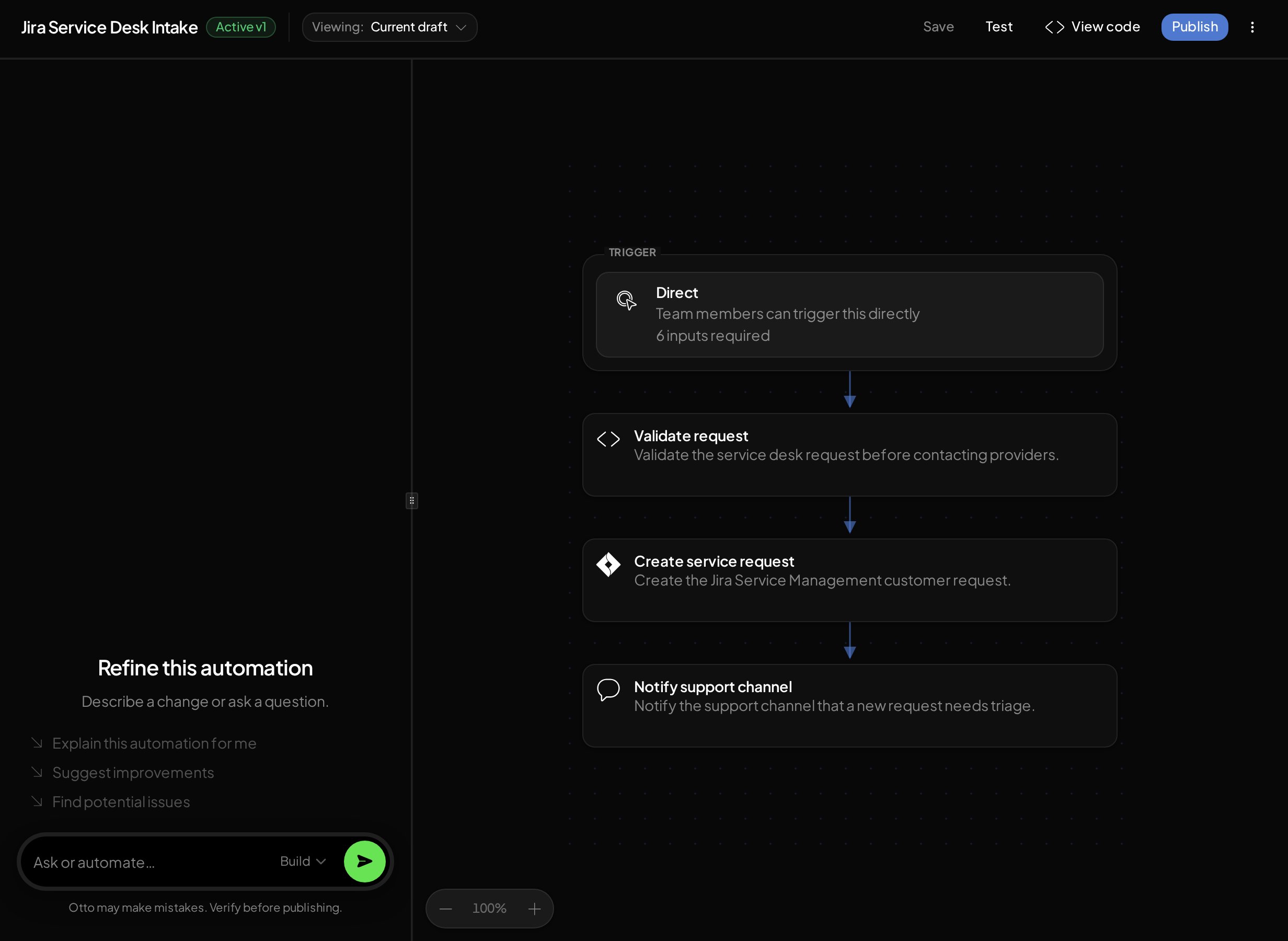
Flow keeps the conversation, automation draft, and validation feedback in one workspace.
 ## Illustrative generated shape
Flow creates the automation, requester update, and output. You do not need to type the code
yourself.
This shortened sketch is illustrative, not a self-contained automation you can copy and run. Open
**Code** to inspect the generated code for your draft.
```ts theme={null}
import * as messaging from "@flow/actions/messaging";
import { defineAutomation, schema } from "@flow/automations";
export const helloFromFlow = defineAutomation({
displayName: "Hello from Flow",
triggers: ["direct"],
input: schema.object({}),
run: async (_input, _ctx) => {
const notificationResult = await messaging.sendNotification({
audience: { kind: "requester" },
message: "Hello from Flow",
});
if (notificationResult.outcome === "failed") {
throw new Error("Could not notify the requester.");
}
return { ok: true };
},
});
```
## Delivery preferences
The requester can turn **Automation update** notifications on or off and choose the channels in
notification preferences. Flow uses eligible channels from that selection when the automation runs.
If an automation needs a specific channel, its author can constrain delivery in the action without
changing the notification type.
## Recover a run
If a live run fails or waits, open its run history before trying again. Review the status,
diagnostic, steps, and output, then follow [Run history and debugging](/automations/run/run-history-and-debugging)
to recover safely. A rerun creates new work.
## Related topics
* [Automation anatomy](/automations/build/anatomy)
* [Use integration actions](/automations/build/connectors)
* [Test and publish](/automations/build/test-and-publish)
This documentation is built and hosted on [Mintlify](https://mintlify.com), a developer documentation platform.
## Illustrative generated shape
Flow creates the automation, requester update, and output. You do not need to type the code
yourself.
This shortened sketch is illustrative, not a self-contained automation you can copy and run. Open
**Code** to inspect the generated code for your draft.
```ts theme={null}
import * as messaging from "@flow/actions/messaging";
import { defineAutomation, schema } from "@flow/automations";
export const helloFromFlow = defineAutomation({
displayName: "Hello from Flow",
triggers: ["direct"],
input: schema.object({}),
run: async (_input, _ctx) => {
const notificationResult = await messaging.sendNotification({
audience: { kind: "requester" },
message: "Hello from Flow",
});
if (notificationResult.outcome === "failed") {
throw new Error("Could not notify the requester.");
}
return { ok: true };
},
});
```
## Delivery preferences
The requester can turn **Automation update** notifications on or off and choose the channels in
notification preferences. Flow uses eligible channels from that selection when the automation runs.
If an automation needs a specific channel, its author can constrain delivery in the action without
changing the notification type.
## Recover a run
If a live run fails or waits, open its run history before trying again. Review the status,
diagnostic, steps, and output, then follow [Run history and debugging](/automations/run/run-history-and-debugging)
to recover safely. A rerun creates new work.
## Related topics
* [Automation anatomy](/automations/build/anatomy)
* [Use integration actions](/automations/build/connectors)
* [Test and publish](/automations/build/test-and-publish)
This documentation is built and hosted on [Mintlify](https://mintlify.com), a developer documentation platform.