> ## Documentation Index
> Fetch the complete documentation index at: https://docs.letsflow.ai/llms.txt
> Use this file to discover all available pages before exploring further.
# Automation anatomy
> Understand the parts of a Flow automation.
An automation has the pieces Flow needs to start work, run steps, call providers, and record the result.
## Visual automation and code
Flow creates a visual automation first. Open **Code** when you want to inspect or extend the
generated code.
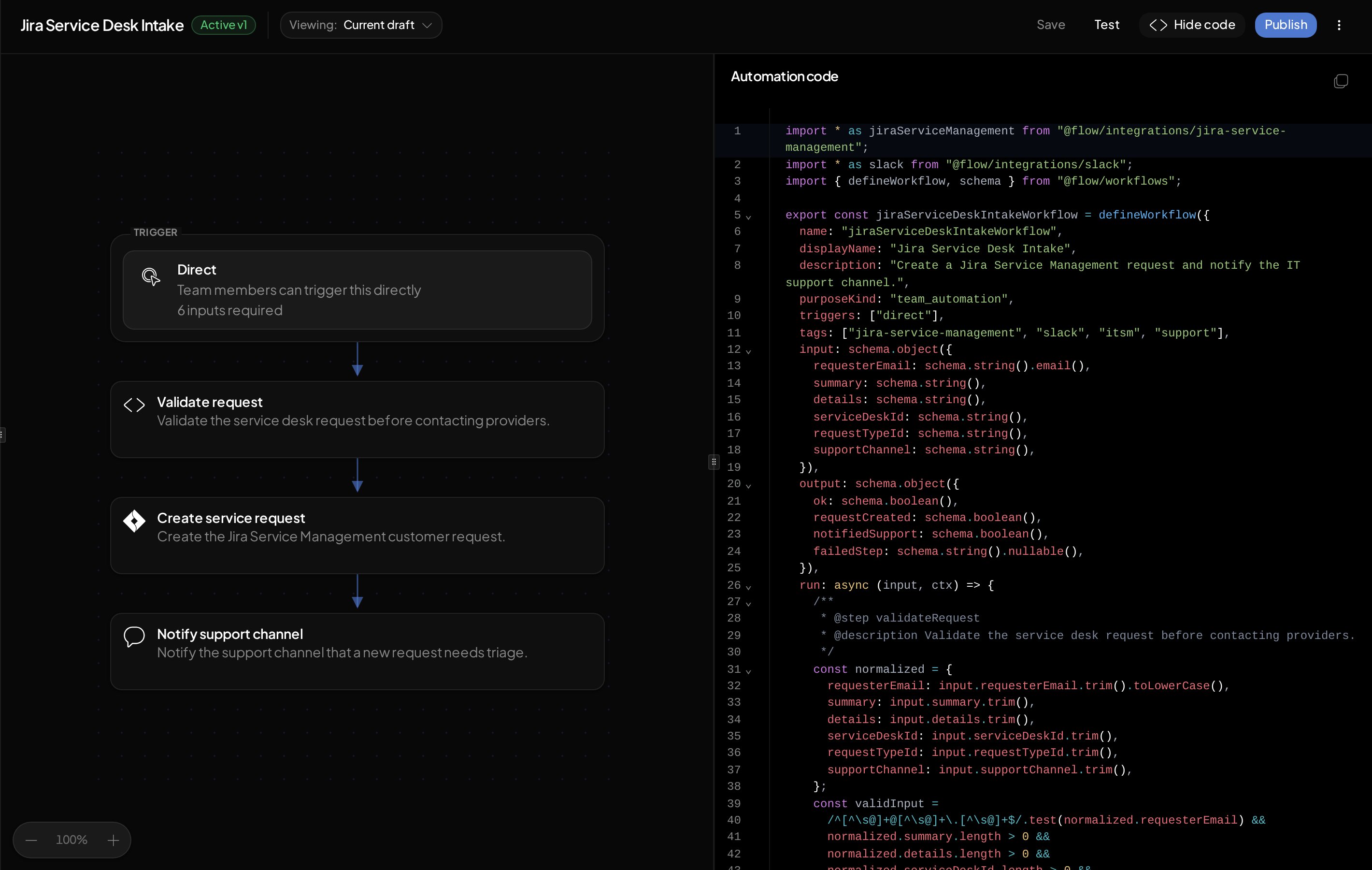 ## Core pieces
| Piece | What it means |
| - | - |
| Name and description | How the automation appears in Flow |
| Input | The fields needed to start a run |
| Steps | The ordered work the automation performs |
| Flow actions | Flow tickets, assets, people, knowledge, and other product data used by steps |
| Integration actions | Provider calls used by the steps |
| Approval | A decision point that pauses the run until the right person approves or rejects |
| Output | The result recorded when the run completes |
| Trigger | The surface that starts the automation |
| Validation scenarios | Saved checks with fixed input, mocks, and expected results for a revision |
| Version | The published automation revision used by new runs |
## Inputs
Inputs are the fields a run needs before it starts. Flow uses them to create the request form and to exercise Validation scenarios and draft runs.
Examples:
| Input | Example |
| - | - |
| Requester email | `alex@example.com` |
| Summary | `Need access to analytics dashboard` |
| Support channel | `#it-support` |
## Steps
Steps describe the work in order. A step can validate input, request approval, call an integration action, or prepare the output.
```mermaid theme={null}
flowchart TD
input["Input"] --> validate["Validate request"]
validate --> approve["Approval, if needed"]
approve --> action["Run integration action"]
action --> output["Return output"]
```
## Integration actions
Integration actions are the provider operations the automation can call, such as:
* Create a Jira Service Management request.
* Add a user to a Google Workspace group.
* Post a Slack message.
* Create a PagerDuty incident.
Integration actions determine which provider connections Flow requires when you test or publish.
## Flow actions
Flow actions read or update data that Flow owns, such as a ticket or asset. They use the automation run's identity and team permissions and do not require a provider connection.
Use [Flow actions](/automations/build/flow-actions) for the available imports, helpers, and authoring rules.
## Outputs
An automation computes its result once. Output surfaces control who can consume
that result:
* **API:** The canonical structured result for applications and integrations.
* **Conversation:** A requester-facing result in a supported Flow-managed
conversation, including Slack.
* **MCP:** A structured result for an authorized MCP caller.
When you ask Flow to create a new automation, it enables all three surfaces
with the API fields. It explains this default and offers customization.
You can request API-only output, disable a surface, or choose different fields
for each surface. A blank automation created manually starts with API-only
output. An unrelated edit preserves an existing automation's output settings.
For example, ask: "Keep status and reference in API and MCP. Return only status
to the requester, presented in one sentence."
Sensitivity follows the data each surface receives, including nested fields.
Sensitive conversational results follow Flow's private-delivery rules.
Output settings do not grant access or bypass credential redaction.
They do not send messages to arbitrary recipients or create a Slack conversation
for a scheduled run.
## Triggers
A trigger is how a run starts. Flow supports multiple entry points depending on how the automation is exposed:
| Entry point | Example |
| - | - |
| User request | A requester asks Flow to run an automation |
| API call | Another system starts the automation |
| MCP tool | An agent calls an exposed automation tool |
| Schedule | A configured date or recurrence becomes due |
| Event | A configured event starts work |
| Automation | A parent automation starts this automation |
Use [Trigger automations](/automations/trigger) for entry-point setup.
## Versions
Publishing creates a version. New runs use the active published version. Existing runs keep using the version they started with.
## Related topics
* [Build your first automation](/automations/build/first-automation)
* [Use integration actions](/automations/build/connectors)
* [Use Flow actions](/automations/build/flow-actions)
* [Test and publish](/automations/build/test-and-publish)
This documentation is built and hosted on [Mintlify](https://mintlify.com), a developer documentation platform.
## Core pieces
| Piece | What it means |
| - | - |
| Name and description | How the automation appears in Flow |
| Input | The fields needed to start a run |
| Steps | The ordered work the automation performs |
| Flow actions | Flow tickets, assets, people, knowledge, and other product data used by steps |
| Integration actions | Provider calls used by the steps |
| Approval | A decision point that pauses the run until the right person approves or rejects |
| Output | The result recorded when the run completes |
| Trigger | The surface that starts the automation |
| Validation scenarios | Saved checks with fixed input, mocks, and expected results for a revision |
| Version | The published automation revision used by new runs |
## Inputs
Inputs are the fields a run needs before it starts. Flow uses them to create the request form and to exercise Validation scenarios and draft runs.
Examples:
| Input | Example |
| - | - |
| Requester email | `alex@example.com` |
| Summary | `Need access to analytics dashboard` |
| Support channel | `#it-support` |
## Steps
Steps describe the work in order. A step can validate input, request approval, call an integration action, or prepare the output.
```mermaid theme={null}
flowchart TD
input["Input"] --> validate["Validate request"]
validate --> approve["Approval, if needed"]
approve --> action["Run integration action"]
action --> output["Return output"]
```
## Integration actions
Integration actions are the provider operations the automation can call, such as:
* Create a Jira Service Management request.
* Add a user to a Google Workspace group.
* Post a Slack message.
* Create a PagerDuty incident.
Integration actions determine which provider connections Flow requires when you test or publish.
## Flow actions
Flow actions read or update data that Flow owns, such as a ticket or asset. They use the automation run's identity and team permissions and do not require a provider connection.
Use [Flow actions](/automations/build/flow-actions) for the available imports, helpers, and authoring rules.
## Outputs
An automation computes its result once. Output surfaces control who can consume
that result:
* **API:** The canonical structured result for applications and integrations.
* **Conversation:** A requester-facing result in a supported Flow-managed
conversation, including Slack.
* **MCP:** A structured result for an authorized MCP caller.
When you ask Flow to create a new automation, it enables all three surfaces
with the API fields. It explains this default and offers customization.
You can request API-only output, disable a surface, or choose different fields
for each surface. A blank automation created manually starts with API-only
output. An unrelated edit preserves an existing automation's output settings.
For example, ask: "Keep status and reference in API and MCP. Return only status
to the requester, presented in one sentence."
Sensitivity follows the data each surface receives, including nested fields.
Sensitive conversational results follow Flow's private-delivery rules.
Output settings do not grant access or bypass credential redaction.
They do not send messages to arbitrary recipients or create a Slack conversation
for a scheduled run.
## Triggers
A trigger is how a run starts. Flow supports multiple entry points depending on how the automation is exposed:
| Entry point | Example |
| - | - |
| User request | A requester asks Flow to run an automation |
| API call | Another system starts the automation |
| MCP tool | An agent calls an exposed automation tool |
| Schedule | A configured date or recurrence becomes due |
| Event | A configured event starts work |
| Automation | A parent automation starts this automation |
Use [Trigger automations](/automations/trigger) for entry-point setup.
## Versions
Publishing creates a version. New runs use the active published version. Existing runs keep using the version they started with.
## Related topics
* [Build your first automation](/automations/build/first-automation)
* [Use integration actions](/automations/build/connectors)
* [Use Flow actions](/automations/build/flow-actions)
* [Test and publish](/automations/build/test-and-publish)
This documentation is built and hosted on [Mintlify](https://mintlify.com), a developer documentation platform.